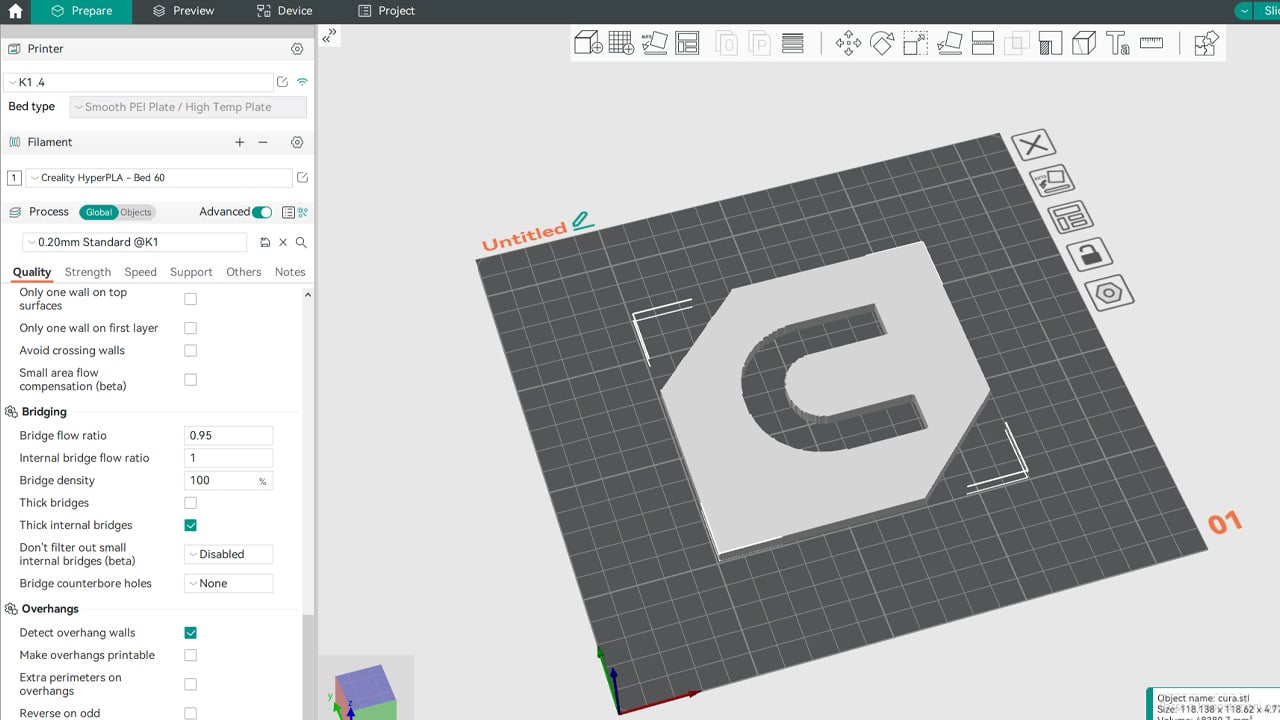

Choosing the right slicer can feel like picking a “hidden” upgrade for your 3D printer. A good one makes prints more reliable, speeds up iteration, and gives you better control over quality without turning every project into a settings marathon.
This review breaks down how Orca Slicer performs in real-world use—what it does well, where it can frustrate, and who it’s best for—plus a practical comparison with the two slicers most people cross-shop.
If you’re coming from another tool and wondering whether Orca is worth switching to, this will help you decide quickly and confidently.
What Orca Slicer is (and why it’s popular)
Orca Slicer is a modern, feature-rich slicer that’s gained traction for its speed, calibration tools, and print-quality controls—especially among users who like to tune. It’s commonly associated with high-performance workflows (including Bambu-style profiles), but it’s flexible enough for many mainstream FDM printers once profiles are dialed in.
Its biggest appeal is how it combines “power user” settings with an interface that’s still approachable after a short learning curve.
Standout features that actually improve prints
Orca Slicer isn’t just a skin-deep fork; it includes tools that can reduce trial-and-error and tighten up consistency.
- Built-in calibration suite: Common test patterns for flow, pressure advance, temperature, and retraction help you tune systematically instead of guessing.
- Strong support controls: Support painting and granular placement options make it easier to protect visible surfaces while keeping supports removable.
- Advanced seam and wall behavior: Useful for hiding seams on decorative parts and improving strength in functional prints.
- Speed-focused workflow: Snappy slicing and responsive preview tools help when you’re iterating on prototypes.
Performance and day-to-day experience
In typical use, Orca Slicer feels fast and deliberate: changing layer heights, switching infill patterns, or tweaking cooling doesn’t bog down the workflow. Preview and toolpath inspection are clear, which is critical when you’re diagnosing artifacts like ringing, weak top layers, or inconsistent extrusion.
The tradeoff is depth: the number of settings can be intimidating if you just want “good enough” defaults. That said, once you save a solid baseline profile for your printer and filament brands, it becomes a smooth daily driver.
Orca vs. Cura and PrusaSlicer: how it stacks up
Most users compare Orca to Cura and PrusaSlicer because they represent two different philosophies: Cura leans toward broad compatibility and a huge plugin ecosystem, while PrusaSlicer is known for sensible defaults and reliable print logic.
If you’re currently on Cura (Ultimaker Cura), Orca will likely feel more “tuner-friendly” out of the box, with calibration and quality controls that encourage dialing in performance. Cura still wins for sheer community breadth, printer definitions, and familiarity in many maker spaces.
Compared with PrusaSlicer, Orca’s edge is often workflow speed, calibration convenience, and certain UI efficiencies. PrusaSlicer remains excellent for predictable results and conservative settings that just work—especially for users who don’t want to chase the last 5% of optimization.
Who should use Orca Slicer (and who shouldn’t)
Orca Slicer is a great fit if you want more control over quality and speed without bouncing between external calibration guides.
- Best for: tinkerers, prototypers, and anyone tuning new filaments; users who like inspecting toolpaths and iterating quickly.
- Not ideal for: absolute beginners who want minimal settings, or teams standardized on a single ecosystem and profile library.
How to get started without getting overwhelmed
The fastest path is to start simple, then add complexity only when a print problem demands it. If you’re ready to try it, you can Download Orca Slicer Free and begin with a known-good printer profile.
- Import or select your printer profile and run a basic PLA print before changing anything.
- Calibrate temperature and flow for one filament you use most.
- Adjust retraction and cooling only if you see stringing or poor bridging.
- Save profiles per material so you’re not retuning every spool.
Conclusion
Orca Slicer delivers a compelling mix of speed, control, and practical calibration tools that can meaningfully improve print consistency—especially if you like to tune settings with intention. While Cura remains a comfort pick for broad compatibility and ecosystem depth, Orca stands out as a performance-focused option that rewards a bit of setup time.
If you’re looking for a slicer that helps you iterate faster, troubleshoot smarter, and push quality further, Orca Slicer is an easy recommendation—particularly once you’ve saved a solid baseline profile for your printer and go-to materials.